How House of David Uses AI for Battle Scenes

You want armies, fortresses, burning hillsides, and massive landscapes … but your budget thinks you’re shooting a small film.
That’s the same problem House of David had to solve.
The team didn’t have Marvel money, but they still had to put ancient wars and giant set-pieces on screen. Their answer was simple in spirit and complex in practice: treat AI like a second unit. Real actors and real cameras handled the emotional moments. AI handled the wide shots, the scale, the fortresses, the crowds, the “no way we can shoot this for real” frames.
This guide takes that idea and turns it into something you can actually run on a laptop with online tools.
What House of David Actually Did
You don’t need the entire production diary. You just need to understand where AI entered the pipeline and what stayed stubbornly human.
On House of David, AI handled all the huge, expensive shots: big battles, giant armies, castles on cliffs, burning hills, and smoky skies. Instead of filming all of that for real, they used AI to create those big, wide frames and save a lot of budget.
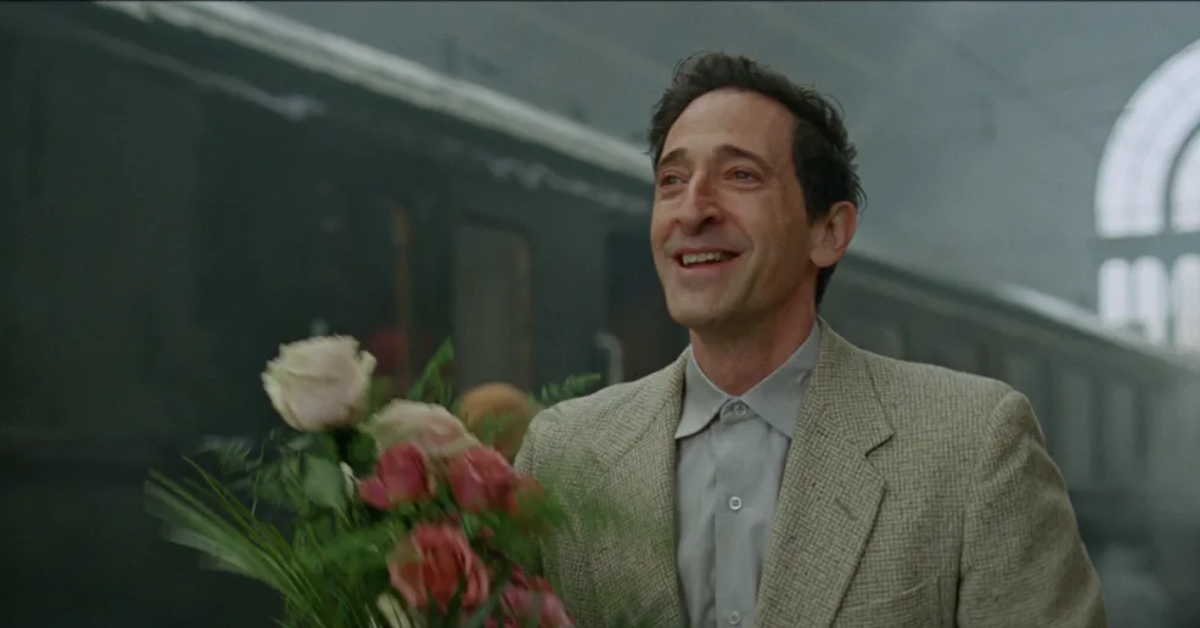
The emotional stuff stayed real. Close-ups, conversations, and small character moments were still shot with real actors and real cameras. That was a hard rule: AI could build the world around them, but it wasn’t allowed to replace their faces or performances.
Behind it all was a stack of tools, not one magic model. Image generators helped design the look of scenes, video tools turned those into moving shots, and upscalers polished them for 4K. Then normal editing and VFX software stitched the AI shots together with the live-action so everything felt like one world.
If you remember this basic setup real actors in the middle, AI for the big scale shots, a few tools to glue it all together, you’ve basically got how they did it, and how you can copy the approach on an indie budget.
The AI VFX Tool Stack: Runway, Kling, Luma & Friends
You don’t have to use these exact tools, but this is the shape of the stack you’ll want.
| Category | What It Does | Tools to Consider |
| Image Generation | Design fortresses, armor, skies, moods, keyframes | Midjourney-style, DALL·E-style models |
| AI Video Generation | Turn prompts or stills into moving battle/enviro shots | Runway Gen-3 / Gen-4.5, Luma Dream Machine, Kling 2.x |
| Upscaling & Enhancement | Sharpen, clean, and push AI clips to 2K/4K | Magnific, Topaz Video AI, Krea-style upscalers |
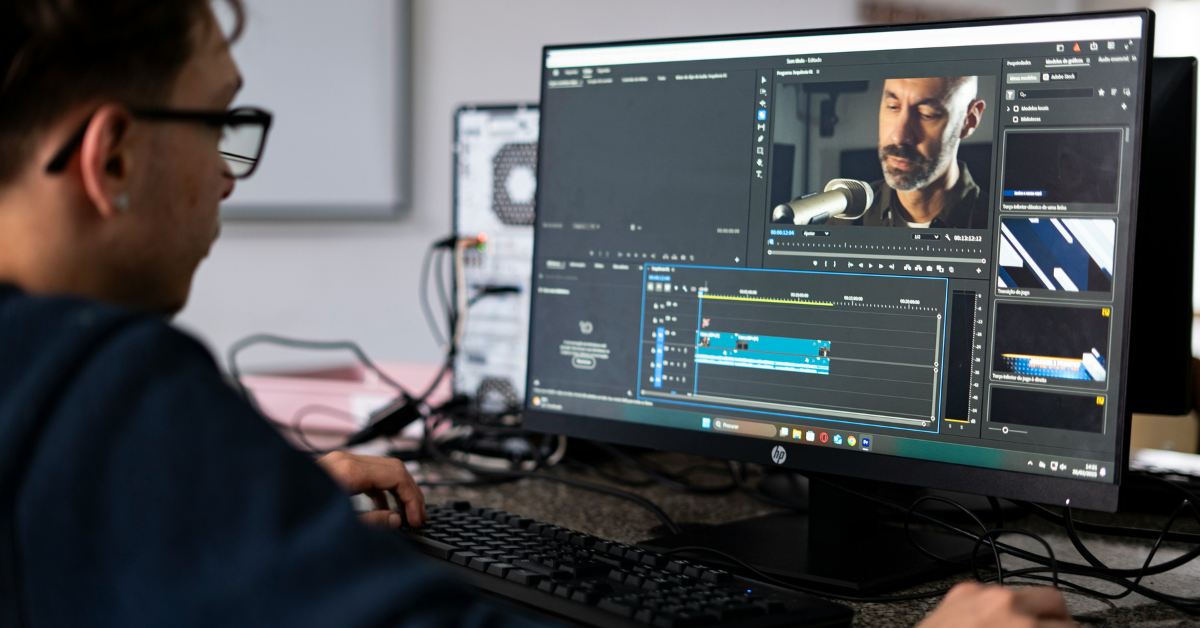
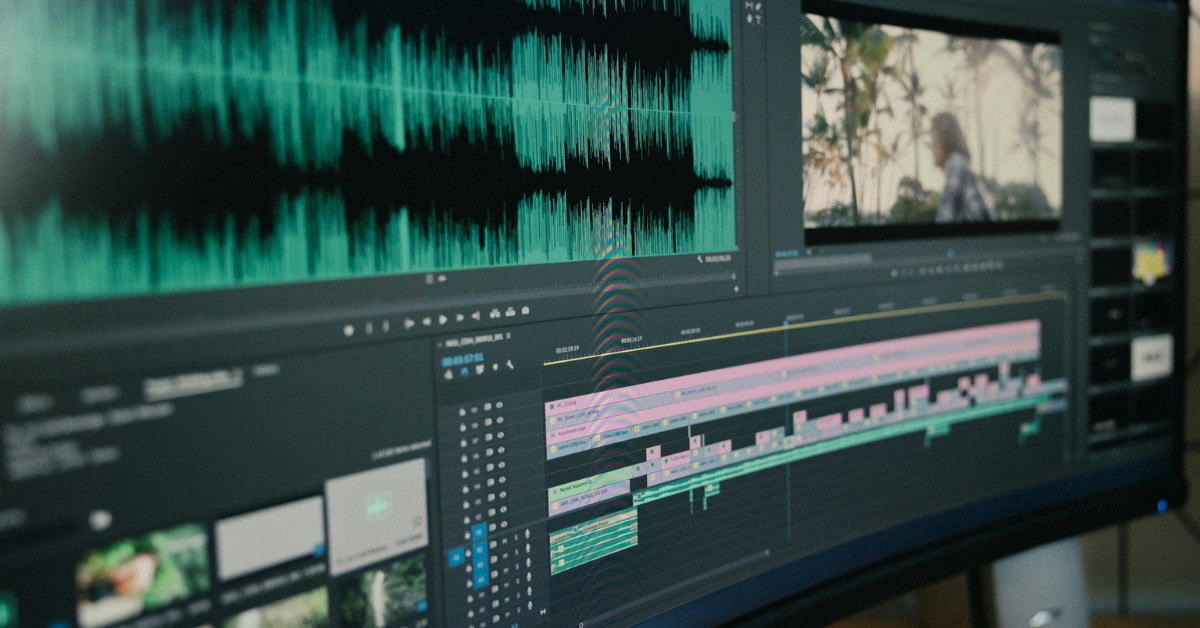
| Editing & Color | Cut the project and give it a consistent “show look” | DaVinci Resolve, Adobe Premiere Pro |
| Compositing & Rotoscoping | Layer actors into AI worlds, clean edges, add glue | After Effects, Fusion, Nuke, Runway Green Screen, Magic Mask (Resolve) |
| Optional 3D / Realtime | Extra geometry, cameras, or virtual sets | Blender, Unreal Engine |
If you just want to try this without going crazy, you can keep it even simpler:
Runway (or Luma or Kling) for AI video,
Runway’s editor (or Resolve/Premiere if you’re already there) for combining,
One upscaler (Topaz / Krea / Magnific) if you care about sharpness.
5 Simple Steps to Try a “House of David”–Style Shot
These steps are not meant to turn you into a VFX supervisor. They’re meant to make you look at your browser and think: “Oh, I could actually do this.”
Think of one shot you want to recreate:
“Hero on a hill. Army and fortress in the distance. Sunrise. Smoke in the valley.”
Now walk through this at a high level.
Step 1: Pick the One Moment You Want to Make Epic
Idea Don’t start with a whole battle. Start with one hero moment.
What you do
Write down a single sentence: “My main character stands on a hill, with an ancient fortress and army in the distance.”
Decide what needs to be real (the person) and what can be AI (the background).
Once you know that, the rest of your decisions get easier.
Step 2: Capture a Simple Base Video (Even on Your Phone)
Idea You don’t need a cinema camera. You just need a clean shot of your actor.
What you do
Ask a friend to stand on a small hill, balcony, or rooftop.
Film a short clip (5–10 seconds) of them looking out toward the horizon.
Try to keep:
the background as simple as possible (sky, field, wall),
the camera relatively steady (tripod, or balanced hand).
This becomes your “real” layer—the same way House of David kept faces and performances real and built everything else around them.
Step 3: Generate the Epic Background with AI Video Tools
Idea Now you create the “House of David” part: the fortress, the army, the valley.
What you do
Use an image generator (or Runway’s image feature) to create a still of: “Ancient stone fortress on a cliff, huge army in a valley, sunrise, dust and smoke, cinematic wide shot.”
Take the best still and feed it into:
Runway Gen-3 / Gen-4.5, or
Luma Dream Machine, or
Kling 2.x using image-to-video.
Ask for a slow camera move or subtle motion (smoke drifting, flags moving).
You now have a short AI clip that looks like an expensive establishing shot from a biblical series—but you made it in the browser.
Step 4: Combine Your Actor and AI Background in Runway (or Resolve)
Idea This is the “glue,” and you stay in the same lane: cinematic tools, not random social apps.
What you do
Use Runway’s editor as the default (browser-based, cinematic-focused). If you already edit in DaVinci Resolve or Premiere Pro, you can do the same thing there.
In Runway Editor:
Put your AI fortress clip on the bottom track (background).
Put your actor clip on a track above it.
Use Runway’s Green Screen / Remove Background on the actor clip.
Resize and position the actor so they stand in the foreground over the AI valley.
In Resolve/Premiere (if you’re comfortable there):
Stack tracks the same way (AI plate below, actor above). Use Magic Mask in Resolve or a simple mask/key in Premiere to remove or hide the original background and reveal the AI one underneath.
You now have a single shot where your real actor is standing in an AI-generated “House of David” world.
Casual alternative (optional): If you just want a quick social-style version, you can do the same structure in CapCut or Veed—one layer for AI background, one for the actor, auto background removal. It won’t give you as much fine control, but it’s enough for a fast TikTok/Reel.
Step 5: Add a Basic Look and Export
Idea You don’t need pro color grading. You just need everything to feel like it belongs in one shot.
What you do
In Runway’s editor, Resolve, or Premiere (whichever you used in Step 4):
Apply one LUT or preset across the whole shot (both layers). Gently adjust:
Now you can export and drop it into your edit, upload it, or show it to friends and watch them assume it cost way more than it did.
Conclusion: You Don’t Need a Studio to Think Like House of David
If you strip everything back, House of David is proof of one simple idea: you don’t need a stadium-sized budget to make a frame feel big. You need human performance in the middle, and the courage to let machines handle everything that surrounds it.
You now know what that looks like in practice. The point of this guide isn’t to turn you into a VFX supervisor. It’s to get you to the first shot where someone asks, “Wait… how did you pull that off?” The moment you have that, you’re thinking about AI the way House of David did—not as a gimmick, but as a quiet second unit that lets you tell stories your budget would normally say no to.
And once you’ve proved that to yourself with one 5–10 second clip, the more interesting question isn’t whether it’s possible anymore. It’s which scene in your story deserves that treatment next.
Y. Anush Reddy is a contributor to this blog.