How to Move Your AI Memory to a New Assistant (Without Starting Over)

Quick start: ChatGPT → Claude takes about three minutes and a paste. Claude → Gemini is slightly more annoying, more steps, less clean, but it works. Gemini → anywhere is the most manual of the three; expect to do some file digging. Jump to the path you need, or read straight through.
What AI Memory Actually Is
Worth clarifying before anything else, because "memory" means different things depending on which AI you're using.
There are roughly three kinds of context your assistant holds about you:
Explicit memory — things you deliberately told it, or that it saved with a clear label. "Remember I'm a freelance designer." "My client's budget is $5k." The cleanest kind to transfer because it's essentially a structured list of facts.
Conversation history — the raw archive of everything you've said to each other. Bulky, usually stored separately from memory proper. Unless you need a searchable record of past conversations, this isn't what you want to transfer.
Implicit memory — preferences the AI inferred on its own, without you ever approving the inference. It noticed you always want concise responses. It figured out your timezone from context clues. It decided you're a morning person because you tend to ask productivity questions before 9am.
This one is messier, and honestly a bit weirder than it sounds, there's a version of you living in your assistant's memory that you've never actually seen, assembled from behavioral patterns you weren't aware you were broadcasting. Some of it will be accurate. Some of it will be confidently wrong in small ways you won't notice until the new AI repeats the mistake.
Pick Your Path
| I want to... | Go to |
| Move from ChatGPT to Claude | Path 1 |
| Move from Claude to Gemini | Path 2 |
| Move from Gemini to Claude or another assistant | Path 2b |
| Use multiple assistants without juggling separate memory profiles | Path 3 |
| Just make a backup without switching | Backing Up section |
Path 1: ChatGPT → Claude
The most well-supported transfer right now. Anthropic designed their import tool specifically with ChatGPT exports in mind, and it shows.
Step 1: Clean up your ChatGPT memory first
In ChatGPT: Settings > Personalization > Memory > Manage
Before you export anything, spend five minutes going through what ChatGPT actually has stored. It accumulates things quietly over time — old job titles, finished projects, a preference you changed six months ago. The goal isn't a big export. It's an accurate one.
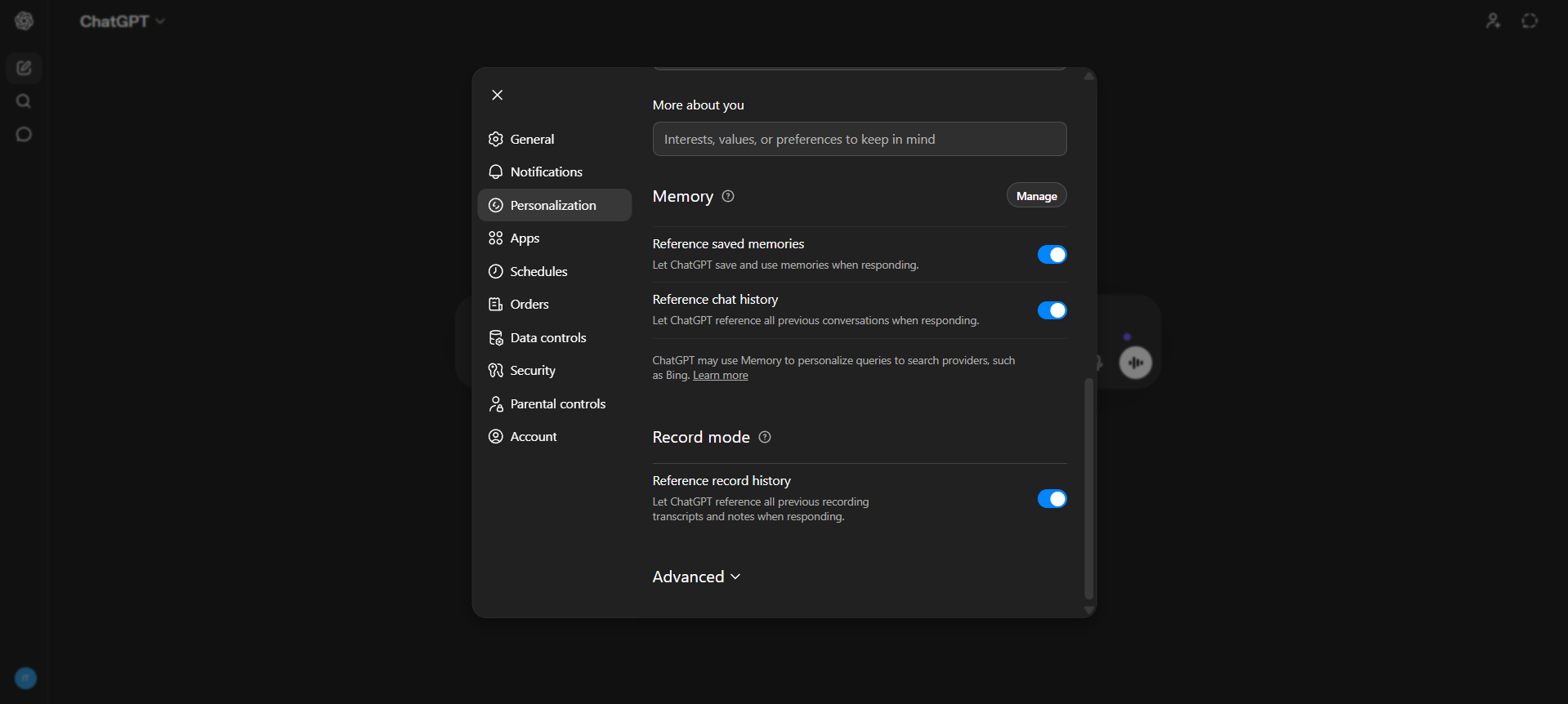
ChatGPT memory management panel showing list of stored memories with individual delete options
Step 2: Run the export prompt
Open a new ChatGPT conversation and paste this:
Please export all saved memories and everything you know about me
from our past conversations.
For my instructions and preferences, preserve my exact phrasing
where possible.
Output in this order:
1. Instructions: rules I've explicitly set (tone, formatting,
style, "always do X", "never do Y")
2. Personal info: name, location, job, background
3. Projects and goals: active work, ongoing topics
4. Tools and tech: languages, software, platforms I use
5. Preferences: communication style, working habits
6. Other: anything not covered above
Format the entire output as a single code block. After the code
block, confirm whether this is a complete export or if anything
remains.
Don't skip the last line as asking for explicit confirmation that the export is complete often makes it do a second round of context that didn't make it.
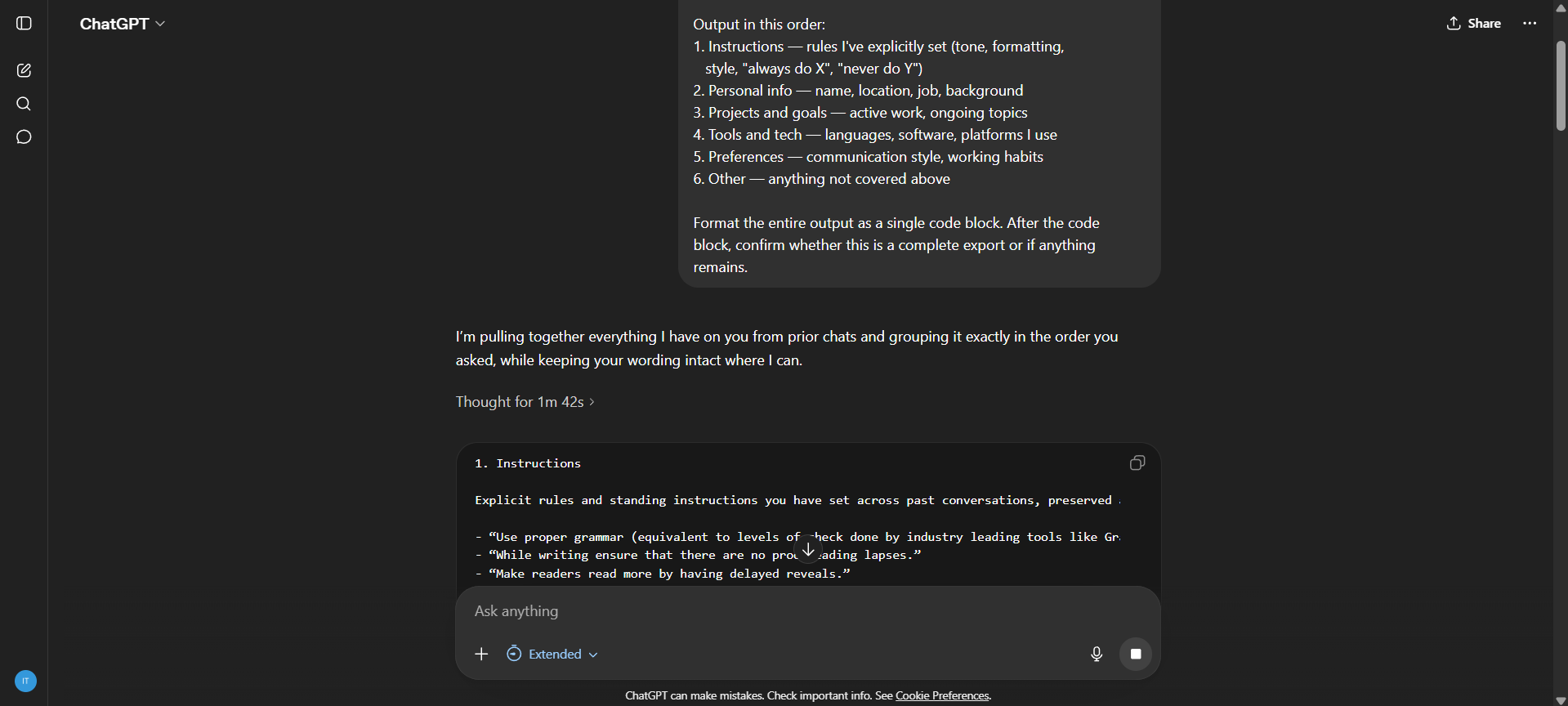
ChatGPT output showing structured memory export in a code block
Step 3: Import into Claude
Two ways in:
Direct: claude.com/import-memory
Or: Claude Settings > Capabilities > Memory Import
Select Import from ChatGPT, paste your exported text, submit.
Claude takes approximately 24 hours to fully integrate imported memory. Come back the next day.
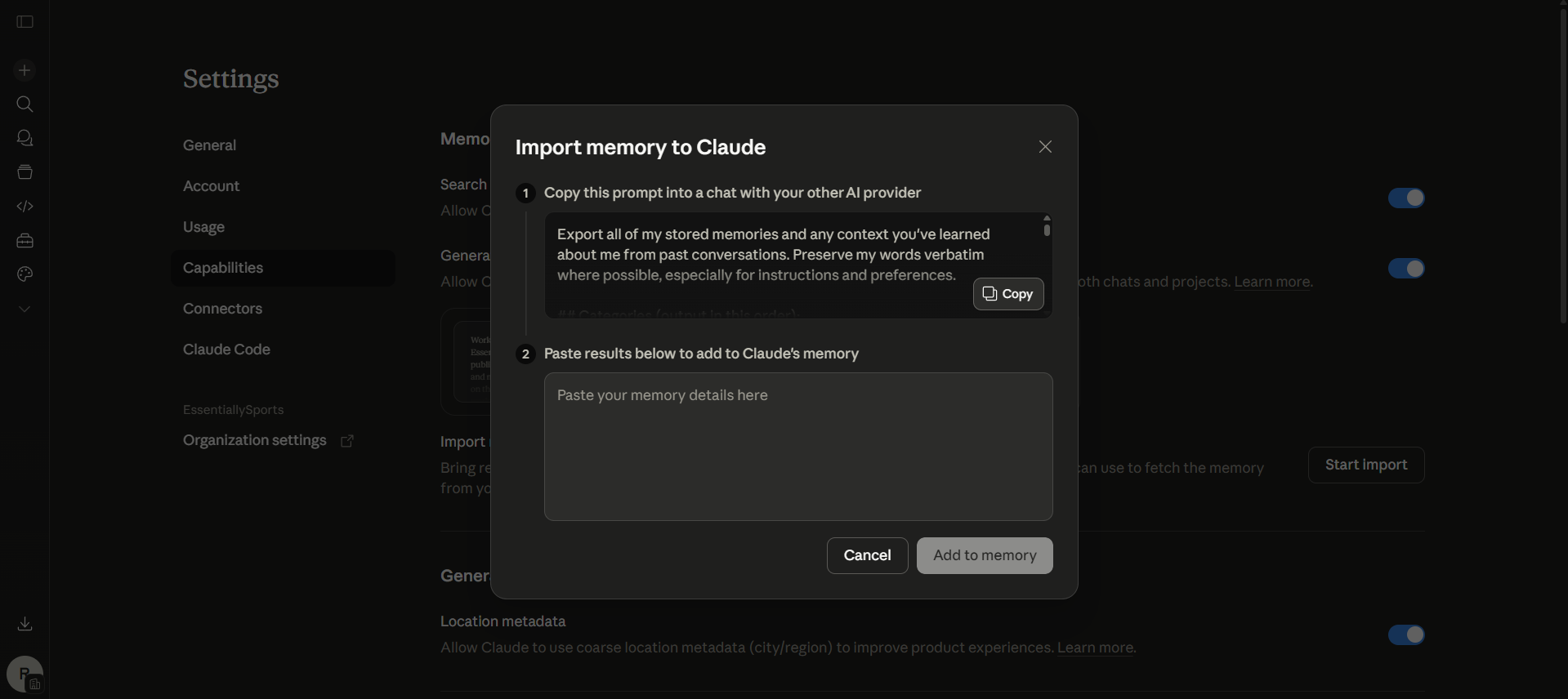
Claude's memory import screen with paste field and provider selection
Step 4: Verify what made it over
After the 24-hour window, open a new Claude conversation and ask:
"I just imported my memory from ChatGPT. What do you know about me?"
It's a slightly strange experience the first time — Claude will essentially read your own profile back to you, and some of it will be slightly off. A detail mischaracterized, a preference that didn't survive the translation cleanly. For anything missing or wrong, go to Settings > Capabilities > View and edit your memory and correct it manually.
One thing worth knowing: Claude's memory system leans toward work-relevant context. Personal details that aren't connected to how you actually use Claude may quietly not persist. That's a design choice on Anthropic's end, not a transfer failure.
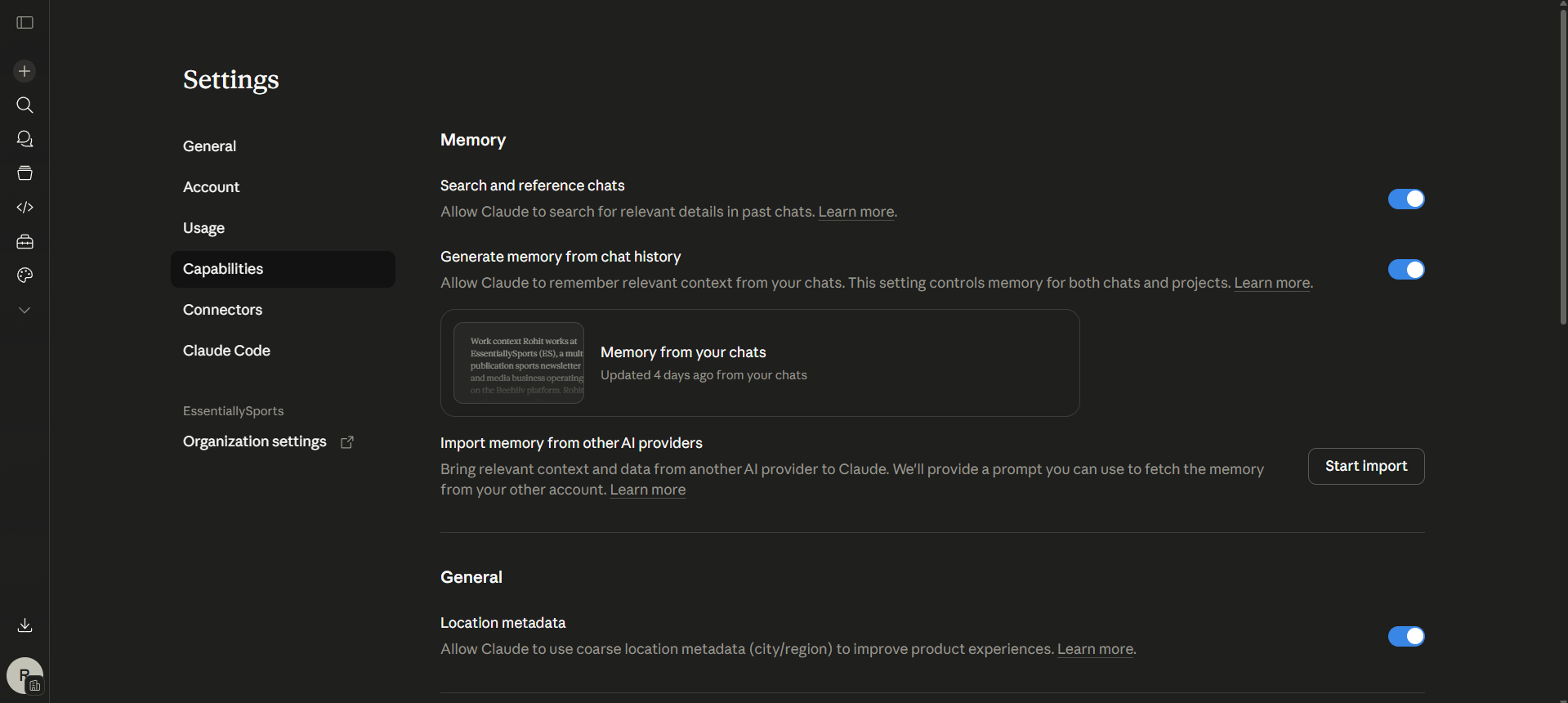
Claude's memory view showing imported entries
Path 2: Claude → Gemini
Same idea as Path 1, slightly more steps.
Step 1: Export your Claude memory
Settings > Capabilities in Claude.
You'll see your full memory profile written in plain, readable markdown — everything Claude has on you, in a format you can actually open and edit. Unlike ChatGPT's opaque vector-based memory, Claude's is legible. You can read it like a document, which matters because it means you can audit what your AI thinks it knows about you before you move it anywhere.
Copy the entire profile. Save it to your desktop or a dedicated folder — somewhere you'll find it in two days when you need it.
Step 2: Use Gemini's prompt-based import
In Gemini: Settings > Switching Tools or Import (the exact label depends on how far Gemini's rollout has reached your account)
Gemini gives you a generated prompt. You paste it into Claude, get the output, then bring that output back into Gemini. Yes, it is a round-trip, it’s just how it works.
Gemini maps the data into five buckets like Demographics, Interests and Preferences etc. Your Claude memory won't carve neatly along those lines, so there will be some interpretation happening at the seams.
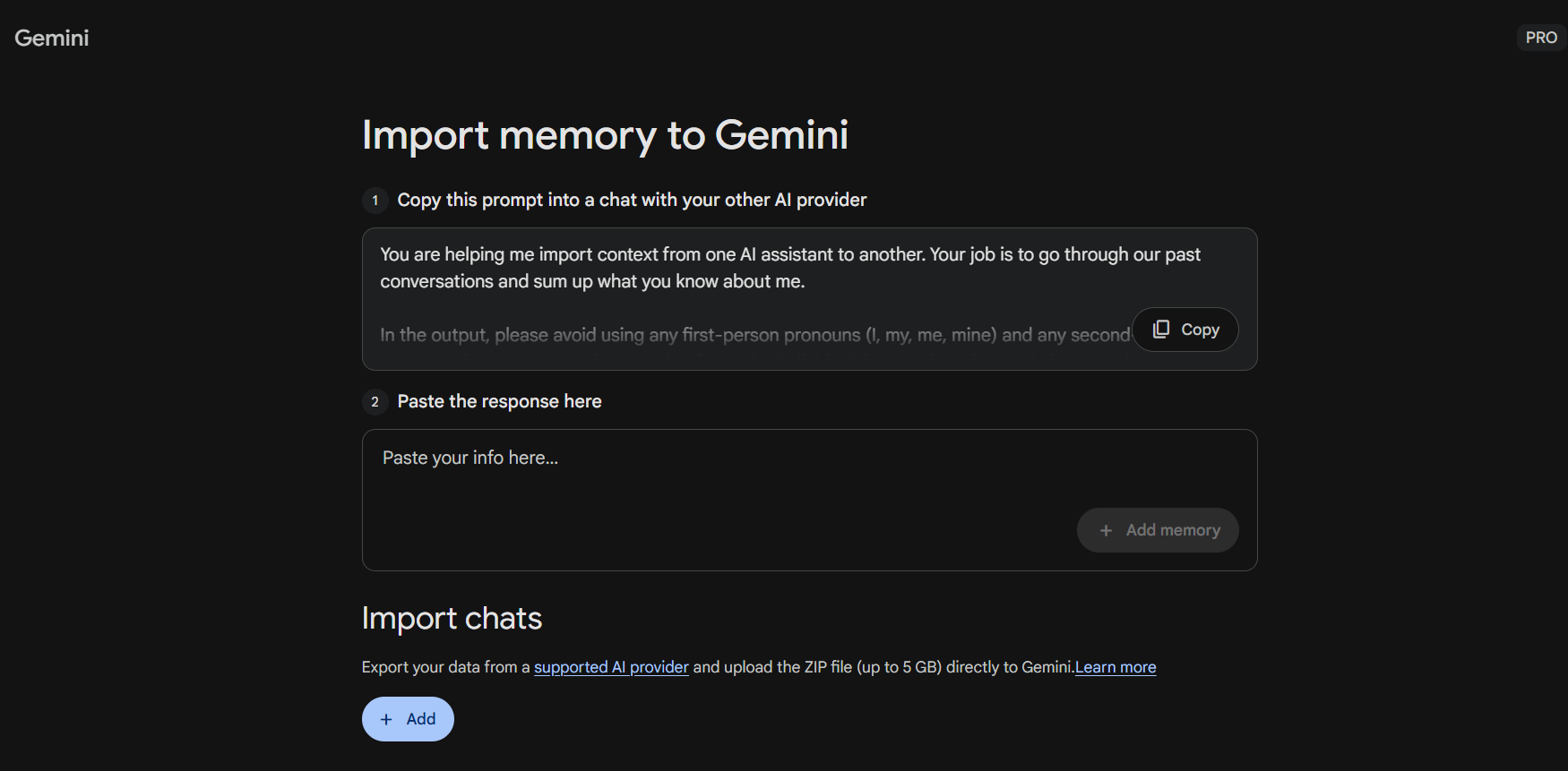
Gemini's import settings panel with the generated prompt
Step 3: Check for what didn't survive
Explicit behavioral rules are the first casualty of cross-platform transfers. Things like "always use Oxford commas" or "never suggest paid tools when a free alternative exists" — the precise, operational instructions — tend to get softened or dropped during the categorization process. Check those specifically after import. If they're missing, add them manually in Gemini's saved info settings.
Path 2b: Gemini → Claude (or Any Other Assistant )
This path is independent of Path 2 — you don't need to have done anything above to use it.
Gemini's export lives outside the app itself, which might seem like a hassle.
Step 1: Export your Gemini data
myaccount.google.com > Data & Privacy > Download your data > select Gemini from the list > request the export.
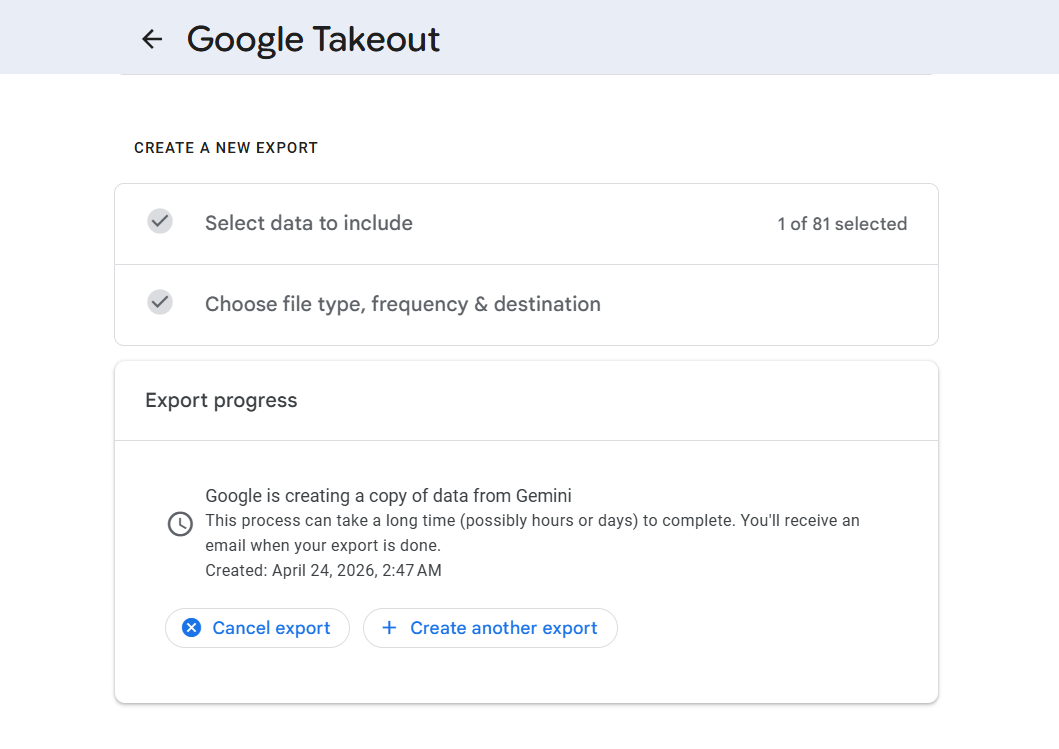
Google will email you a download link when it's ready, usually within 15-30 minutes. The file comes as a ZIP containing your conversation history and any saved personal context.
Step 2: Pull out what's actually useful
The ZIP isn't formatted for direct import anywhere. Open it, find the conversation files, and copy the useful parts — tone preferences, recurring projects, behavioral instructions, explicit personal context — into a clean text document. More manual than the ChatGPT export prompt, but it's a fifteen-minute job.
Step 3: Bring it into Claude
Go to claude.com/import-memory or Claude Settings > Capabilities > Memory Import, paste your cleaned-up text, submit. Same 24-hour processing window applies.
ChatGPT still doesn't have a proper import tool, so you'd be pasting context into custom instructions manually. It works, it's just not a clean one-step process.
Path 3: Universal Memory Layer (Third-Party Tools)
If you use multiple AI assistants regularly, the platform-by-platform approach becomes its own problem. You're not moving memory anymore, you're copying it into multiple places and hoping they stay in sync.
A few tools approach this differently, sitting underneath the assistants rather than inside any one of them:
Mem0 / OpenMemory Open-source memory layer, added proper portability and export/import support in late 2025. The more interesting pitch is for people who don't want any single platform owning their context — it runs on your own infrastructure if you want it to. Has a hosted version for teams that don't. Best fit for people with data residency requirements or anyone who wants full control over where their context actually lives.
AI Context Flow Browser extension that injects a shared context layer into ChatGPT, Claude, Gemini, Perplexity, and Grok. You build your memory buckets once, and they travel with you. Accepts .txt, .json, .docx, .md, and .pdf. Useful for anyone who doesn't want to treat one platform as the canonical home for their context.
Both options add a third party to a chain that already handles fairly personal information. Before using either for work-sensitive context, read their data retention policies. Worth checking, not worth avoiding on that basis alone.
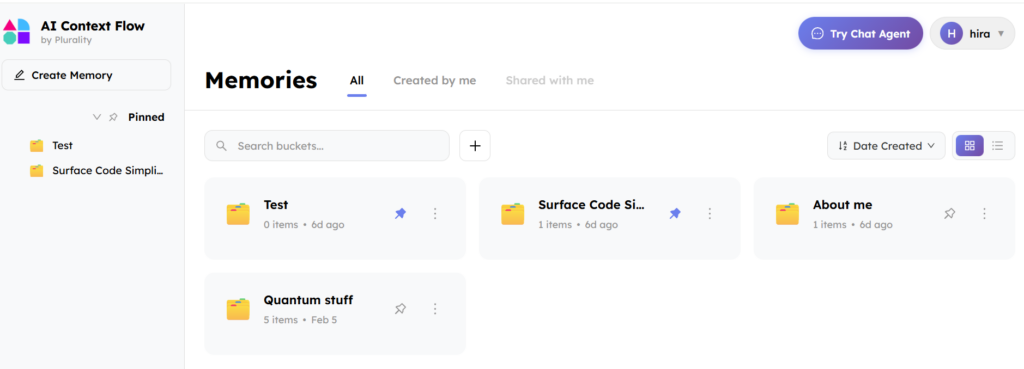
AI Context Flow browser extension showing memory bucket interface
What You Should NOT Transfer
When you export your AI memory, you're looking at a more detailed personal profile than most people expect. Months of conversations, quietly distilled. For most people it's benign with tone preferences, project context, working habits. But some exports will contain things worth removing before you move them anywhere:
Credentials and access tokens. It happens. People paste API keys into chat windows, or troubleshoot something and share a token mid-conversation. Search your export before sending it anywhere. Anything that looks like a key, token, or password — delete it from the export file.
Client or employer data. This is the one that creates real problems. Project codenames, company strategies, customer details and if your organization's data policies don't permit that information living in a third-party AI's memory, it shouldn't be traveling between platforms either. Data portability features in 2026 are new enough that most IT policies haven't caught up to them yet.
Other people's personal information. Phone numbers, email addresses, home locations of people you mentioned. You didn't get their consent to move that around.
Health or financial specifics. The risk isn't malice, it's surface area. More systems holding sensitive details means more places for something to go wrong.
Before any transfer: read through the export file. Ten minutes. Remove what falls into those categories. Then transfer the rest.
Backing Up Without Switching
Not switching, just want a safety net in case your memory gets wiped or your account has an issue.
Claude: Settings > Capabilities > copy the full memory profile > save as a local .md file. Name it something you'll actually locate: Claude Memory Backup April 2026.md. Not "backup1.txt" in your Downloads folder.
ChatGPT: Run the export prompt from Path 1, Step 2, save the output.
Gemini: myaccount.google.com > Data & Privacy > Download your data > filter for Gemini. ZIP file with full history.
Three minutes now. Potentially a lot of frustration saved later.
Known Limitations
This all works. It doesn't work perfectly, and a few things are worth knowing before you expect otherwise.
Round-trip fidelity degrades — and this is the one that bites people most. Export from Claude, import to Gemini, then export from Gemini and bring it back to Claude — you lose signal at each translation. A detail gets reworded. A behavioral rule gets softened. A preference gets collapsed into a category it doesn't quite fit. Think of it less like copying a file and more like running something through two interpreters in sequence. The meaning survives. The precision might not.
The formats don't actually speak the same language. Claude's memory is human-readable markdown. OpenAI's is vector-backed and opaque. Google's is structured around its own category system. When you transfer between them, there's always a mapping step happening, and mapping involves judgment calls that don't always go the way you'd expect.
The 24-hour thing is real. Claude's import genuinely takes time to process. A lot of people conclude the feature is broken within the first hour. It isn't, it just hasn't finished.
It's still experimental. Labeled that way by Anthropic as of March 2026, and the label is honest. Most transfers work cleanly. Complex exports with a lot of entries may have gaps. Manual editing is a normal part of the process, not a fallback for edge cases.
Why Any of This Exists Now
For most of 2025, AI memory was a lock-in mechanism. The longer you used ChatGPT, the more it knew you, and the more it knew about you the more painful leaving it felt. Same with Gemini. Same with Claude. Accumulated context was a moat, and the companies building these products knew it.
That changed in March 2026. Anthropic launched a memory import feature for Claude. Google followed with Gemini's switching tools within weeks. This tells us the two companies realize that lock-in via friction is a short-term strategy. If your context travels with you, the only thing keeping you on a platform is whether the AI is actually good. That's a harder problem to solve than just making it annoying to leave, but it's a more honest competition — one where users benefit from the pressure instead of being caught in it.
OpenAI is conspicuously absent from this story. As of this writing, you can export from ChatGPT into other platforms, but you can't bring external memory into it. That gap will almost certainly close. Until then, the import flow only runs one direction with them.
The broader point is that this portability shift matters beyond the mechanics. For years the implicit deal was: invest in an AI assistant and that investment stays there. Your context was the platform's asset as much as yours. What changed in early 2026 is that the context started becoming portable — which means it started being yours in a more meaningful sense. That's a slow shift, still incomplete and imperfect. But the direction is clear enough to start acting on.
Navigation or steps looking different from what's described here? Drop a comment. These interfaces update often and I keep this revised.
Related reads:
Understanding How AI Image Generation works in Simple terms
Y. Anush Reddy is a contributor to this blog.